Indicator Item Extension
See Indicator Item to set up the Indicator Item and Indicator Bundle Item to set up the Indicator Bundle Item before setting up Indicator Item Extensions.
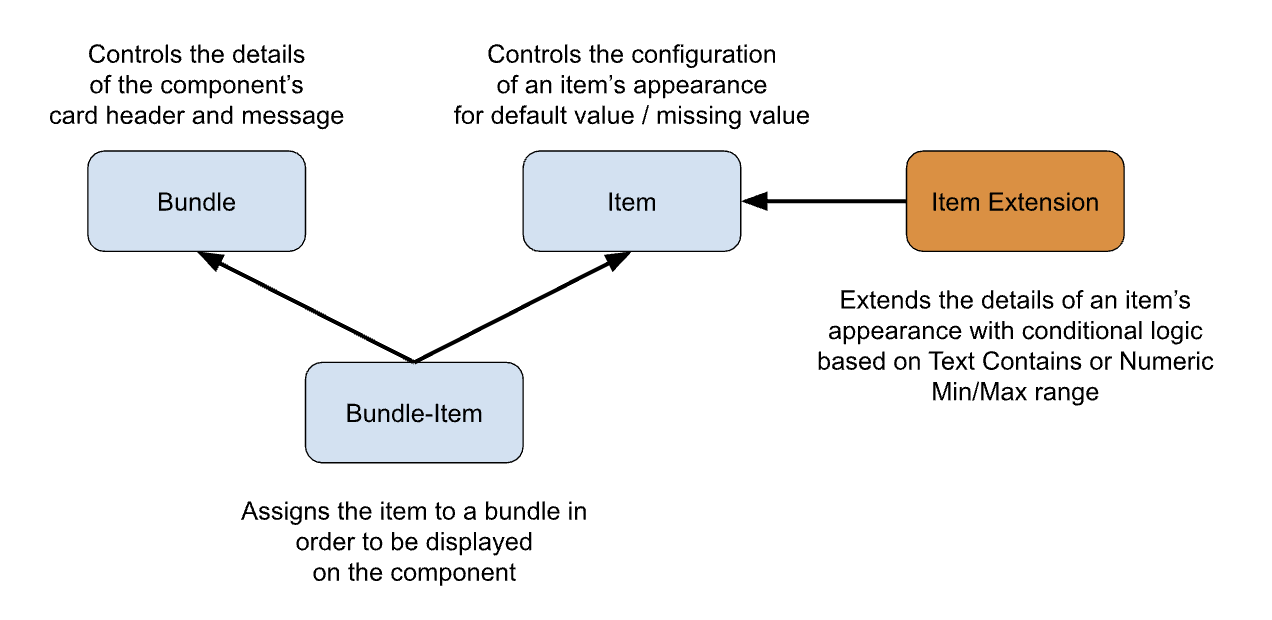
Indicator Item Extension
An Indicator Item Extension allows more icons to be configured for one field that displays when the field has different values. For example, Industry = “Accounting” or Industry= “Communications”.
Definition
Extensions are used to define any required variations to an Indicator Item. This can include variations to the icon appearance and changes to the selection criteria.
A Simple Usage example
An item for a Donor Status with a criteria of “contains” might have the following extensions:
- “Donor Status under $10k”
- a pale green icon for total donations $0 to $9,999
- “Donor Status $10k - $50k”
- a dark green icon for total donations $10,000 to $49,999
- “Donor Status $50k - $100k”
- a pale yellow icon for total donations $50,000 to $99,999
- “Donor Status over $100k”
- a dark yellow icon for total donations $100,000 or greater
Add a new Indicator Item Extension
- Go to the Indicators Setup Tab
- Open the Indicators Setup Menu
- Use the New button to add a new Indicator Item Extension
Edit an existing Indicator Item
- Go to the Indicator Settings Tab
- Choose the Indicator Bundle that the Indicator Item is on (or the Item will be in Unbundled Items if the Item is not on a Bundle yet).
- Click the Edit button next to the Extension to edit.
OR, alternatively:
- Edit the Settings in CMDT:
- Navigate to Salesforce Setup > Custom Metadata Types
- Scroll to Indicator Item Extensions, and click Manage Records
- Click Edit next to the Extension you want to edit
Indicator Item Extension Fields
| Field | Example Value | Description | Tip | |
|---|---|---|---|---|
| Label | Donor Status |
Give it a descriptive name | Include the Object Name | |
| Indicator Item Extension Name | Donor_Status |
The API name | ||
| Active | true |
Leave this unchecked until the Indicator is ready to be added to a Bundle | ||
| Priority | Priority rules: If the first extension priority rule is met then further rules are ignored | Optional | ||
| Minimum (>=) | 0 |
The minimum value required | Optional | |
| Maximum (<) | 1000000 |
The maximum value required | Optional | |
| Text Operator | Contains |
options are: Contains (Will default to Contains if the field is empty), Does Not Equal, Equals, Starts With |
||
| Contains Text | $500 |
The field contains this text | ||
| Description | If the Contact's Donor Status is Entered the icon will show |
Write something useful here, your future self will thank you | ||
| Hover Text | The Contact has a Donor Status entered |
Text to display when the user hovers over the icon | Leaving the Hover Text blank will show the field value as the hover text | |
| Static Text | Text to display instead of a field value, icon, or image URL (only the first 3 characters or emojis will display) | Copy and paste Emojis here for some fun Indicators | ||
| Image | The URL to the image of the Indicator when being used instead of Field, Text, or Icon | eg link to a Static Resource, File, or Document in your Org | The use of an Image overrides any Icon settings | |
| Icon Value | custom:custom17 |
The Lightning Design System icon when being used instead of Field, Text, or Image URL. Get Icons from from https://lightningdesignsystem.com/icons/. Enter the full category and icon name like `custom:custom32’ | If Static text is entered, the Icon colour will be used, with the static text in white | |
| Icon Background | Override the default background of the Indicator’s icon | |||
| Icon Foreground | Override the default foreground of the Indicator’s icon |
New Field - Text Operator
Now you can set up an Extension to display based on the following text logic:
- Contains: (Will default to Contains if the field is empty). Eg Title Contains
CEO- Does Not Equal: Eg Title Does Not Equal
System Administrator- Equals: Eg Title Equals
President- Starts With: Eg Title Starts with
Vice President
Tips
💡Setup Tips
- See Recipes that use Extensions for more ideas
- If you create Indicator Item Extensions to cover all required variations, the Indicator Item does not need to have the Icon fields entered.
- Eg values are Hot, Warm and Cold, and there is an Extension create for each value. There is no need to set up an Icon to show for any value or blank value.
Display Multiple Icons with one Indicator
This is an excellent new feature for use with Multi Select Picklists or DLRS rollups using Concatenate Distinct.
For Example, you have a field on Contact named Product Categories that is a DLRS rollup of all the Product Families the Contact currently owns. Configure multiple Extensions with different Icons = eg Product Categories Contains
PHON, Product Categories ContainsLPTP, and Product Categories ContainsWTCH. then if the Contact owns all three you will see 3 icons on the Contact Page.Remember to check Display Multiple on the Indicator Item setup for this Indicator.
We recommend including this Indicator in a Bundle on it’s own, depending on how many Product Categories you have.
Next Steps
- Create more Indicator Item Extensions as needed
- Add the Bundle to your Lightning Page and check The Key